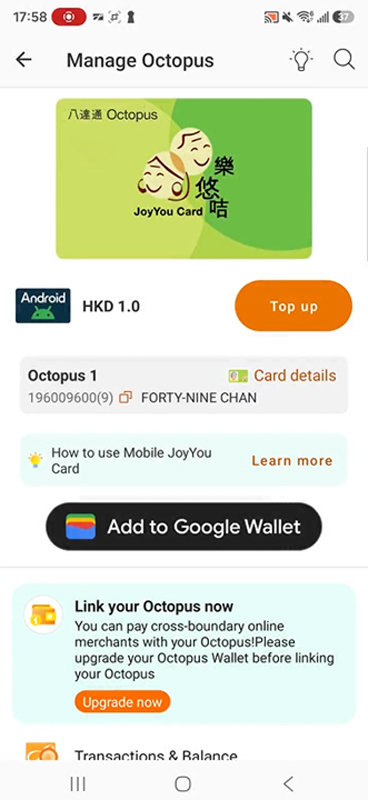
For Existing Physical JoyYou Cardholders
You may transfer your existing Physical JoyYou Card to a compatible iPhone or Android phone*. Please do not submit another application for a Mobile JoyYou Card.
Please note:
- After the Physical JoyYou Card has been transferred to the mobile phone, the original Physical JoyYou Card will be cancelled immediately and its card number will become invalid.¹ This action cannot be reversed. A new card number will be generated automatically for the Mobile JoyYou Card.
- Mobile JoyYou Card is not applicable to Apple Watch and other smart watches.
- An Android phone supports only one Mobile Octopus at a time. If you already have an Octopus on Android on your phone, please delete it and apply for a refund before adding Mobile JoyYou Card. Uninstalling the Octopus App will also remove Mobile JoyYou Card on Android from that phone and may cause the Mobile JoyYou Card to become malfunctioned, unless you have completed the necessary backup procedure. If you need to transfer the Mobile JoyYou Card to another phone, please complete the backup procedure in the Octopus App first.
- Other On-Loan Physical Octopus cards, apart from a Physical JoyYou Card, cannot currently be transferred directly to a Mobile JoyYou Card. If you would like to continue using the deposit, remaining value and certain other services stored on your existing On-Loan Physical Octopus, such as Automatic Add Value Service, access control and valid “Persons with Disabilities Status”, by transferring them to a Mobile JoyYou Card, please first use the “Easy Transfer” Service at an Octopus Service Point to transfer them to a Physical JoyYou Card. After completing the “Easy Transfer” Service, use the Octopus App to transfer the Physical JoyYou Card to a Mobile JoyYou Card.
¹An invalid Physical JoyYou Card cannot be used as proof of eligibility for the $2 Scheme. An eligible beneficiary of the $2 Scheme may hold only one valid JoyYou Card at any time, whether it is a Physical JoyYou Card or a Mobile JoyYou Card.
Services Transfer Overview
Check Before Transfer
- Existing Physical JoyYou Card;
- A compatible phone model and operating system* compatible with Mobile JoyYou Card;
- The latest versions of the following apps downloaded on the applicant’s phone:
- Octopus App;
- “iAM Smart” mobile app, with the applicant logged in to the “iAM Smart” account; and
- Octopus Wallet account (applicable to Android users).
* iPhone: iPhone 8 / iPhone 8 Plus or later with the latest version of iOS; Android Phone: Phones equipped with NFC functionality, running Android 12 or above, or EMUI 13 or above, sold by authorised retailers in Hong Kong. Click here for more details about Android phone models that have been tested and demonstrated good performance. Click here for more details about unsupported Android phone models. Mobile JoyYou Card is not applicable to Apple Watch and other smart watches
Steps for the transfer
Steps for iPhone Users:
1
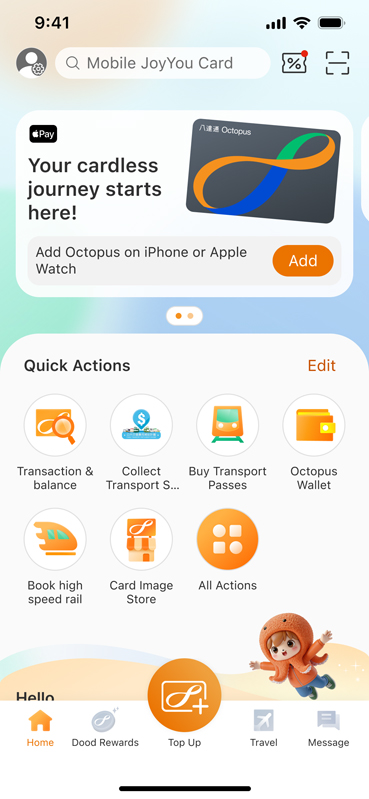
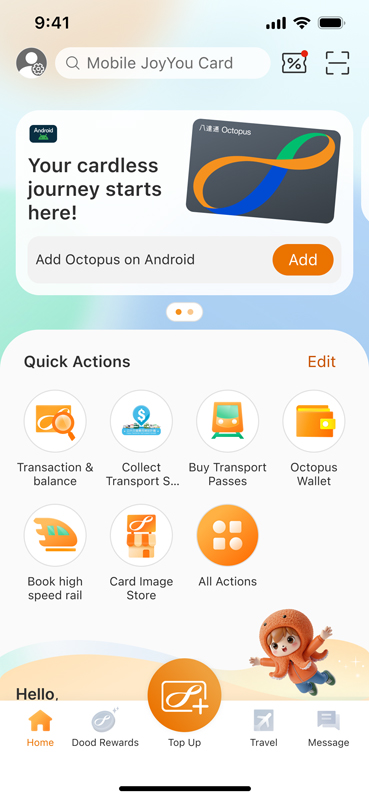
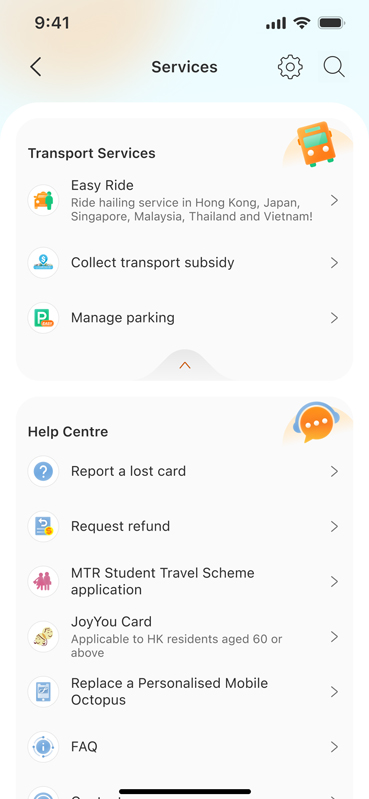
Open the Octopus App. Under “Quick Actions” on the main page, tap “All Actions”.
2
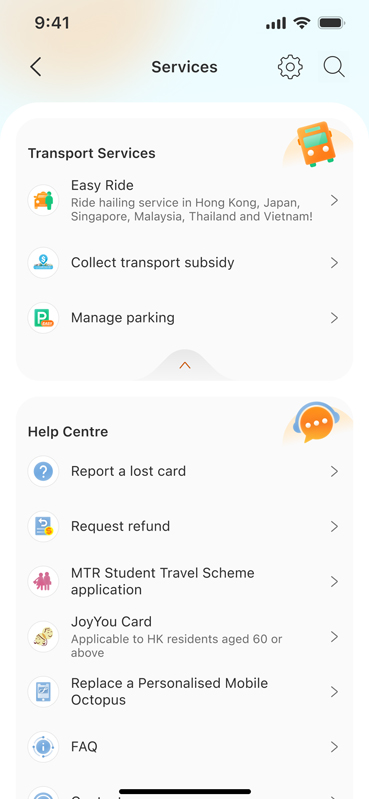
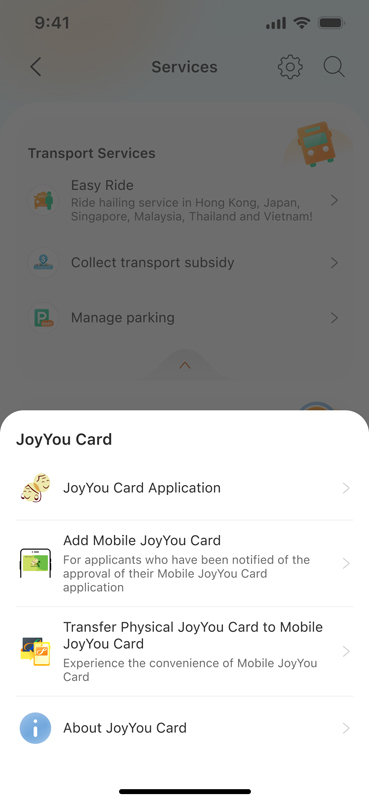
Tap “JoyYou Card” under “Help Centre”.
3
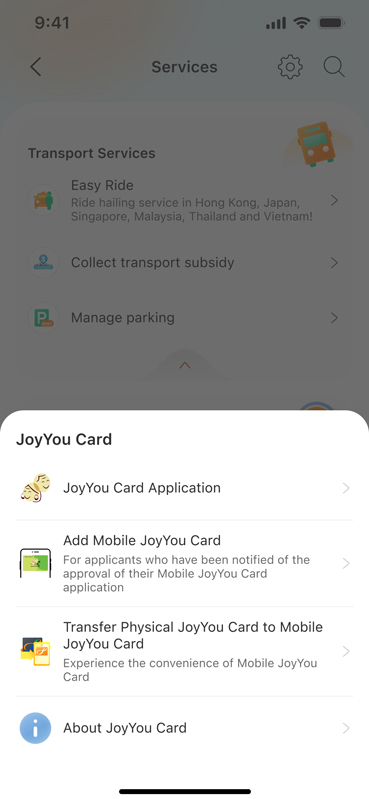
Tap “Transfer Physical JoyYou Card to Mobile JoyYou Card”.
4
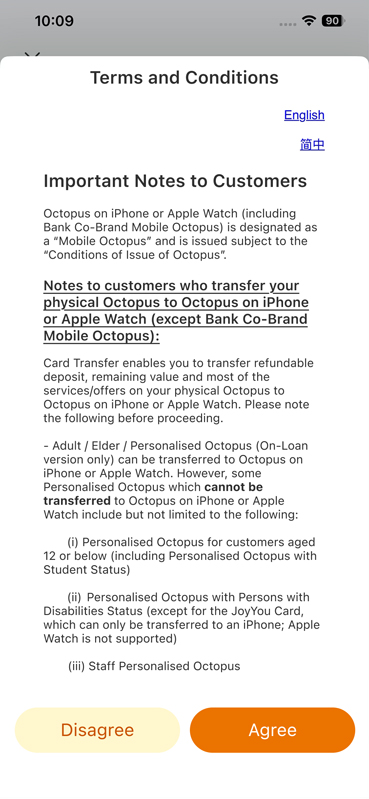
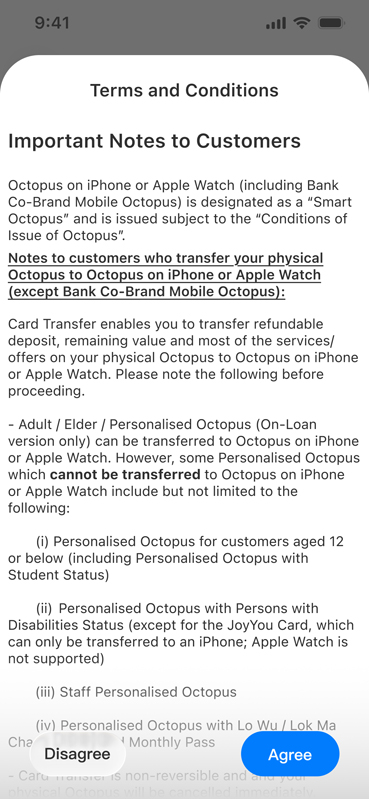
Read the Terms and Conditions and tap “Agree”.
5
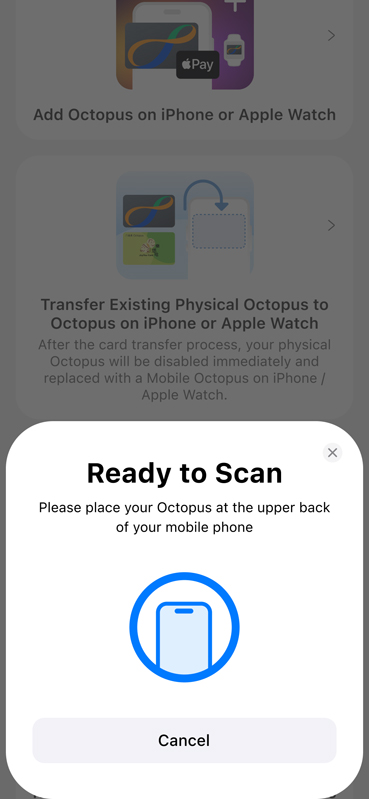
Hold the Physical JoyYou Card to the top back of the iPhone.
6
Read the information and tap “Next”.
7
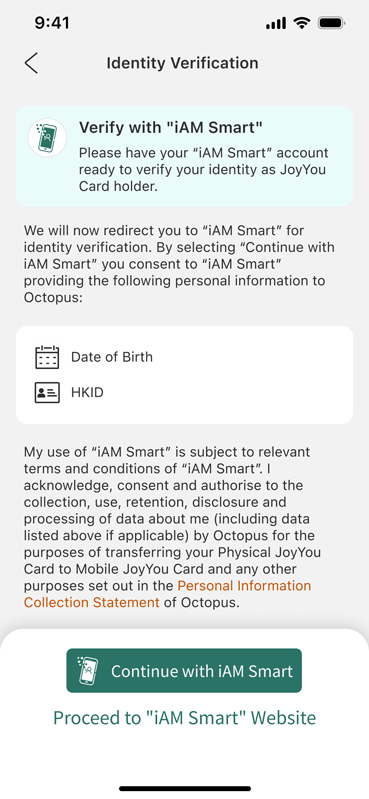
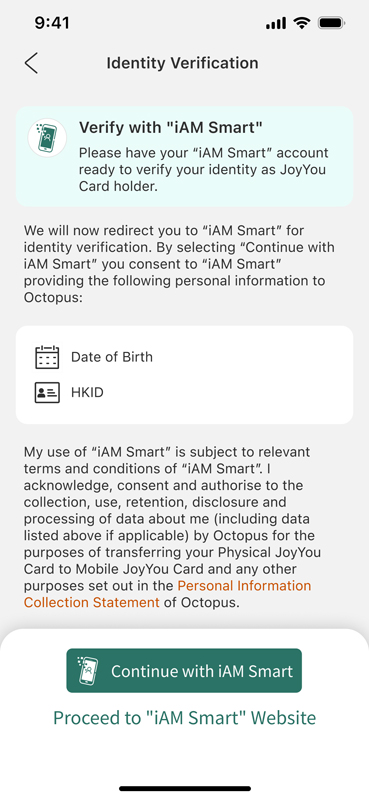
Tap “Continue with “iAM Smart”, then “Confirm” to open “iAM Smart” mobile app for identity verification.
(Please note: If you do not have an “iAM Smart” mobile app, please download the “iAM Smart” mobile app and log in first.)
8
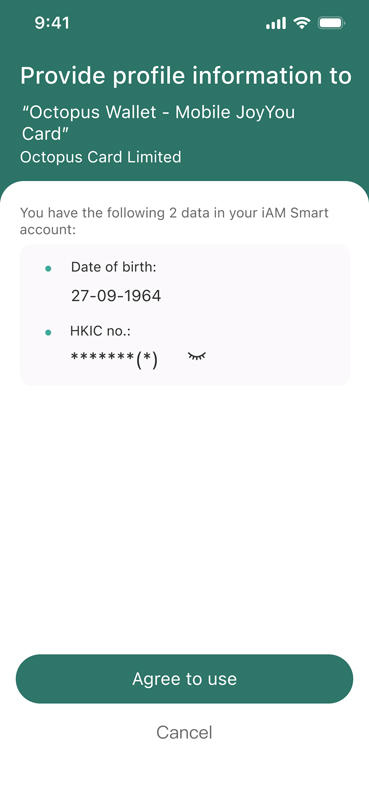
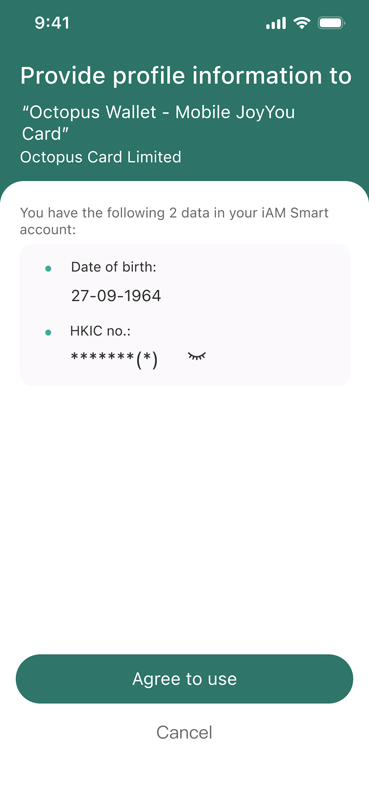
In “iAM Smart” account, tap “Agree” to provide personal data to Octopus Cards Limited.
9
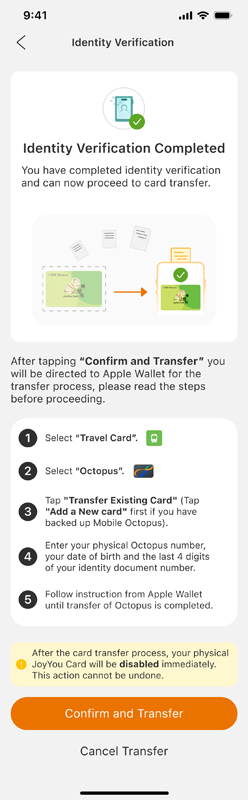
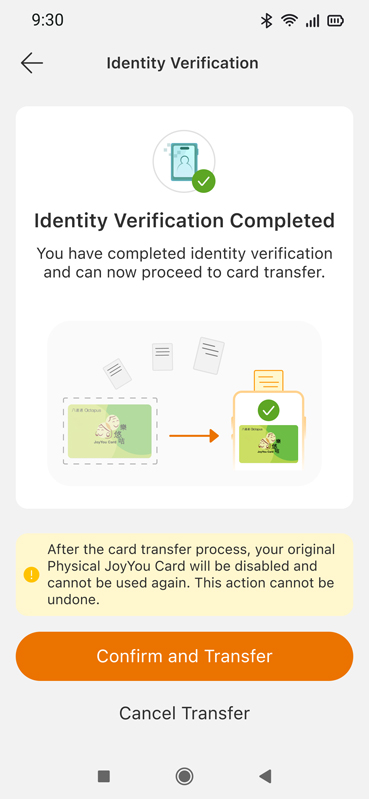
The page will be redirected to the Octopus App to complete the remaining steps. After identity verification, tap “Confirm Transfer”.
10
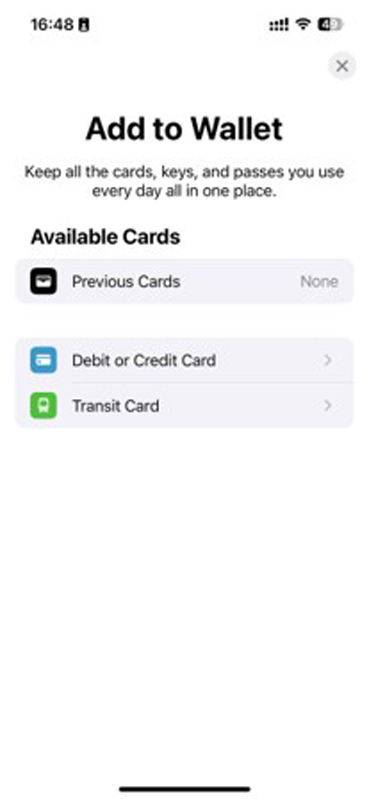
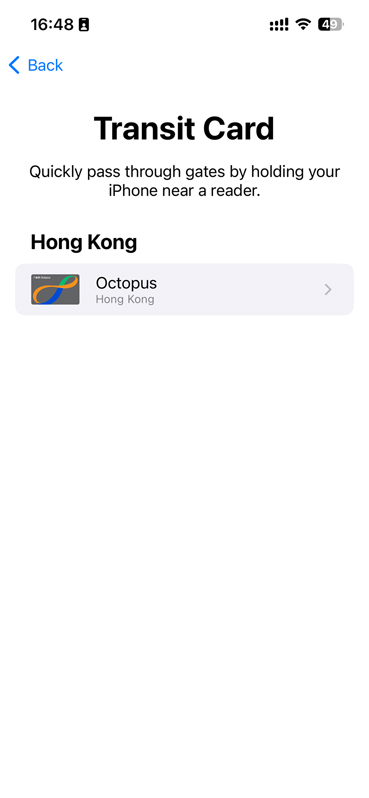
The page will be redirected to Apple Wallet to complete the remaining steps. Tap “Transit Card”.
12
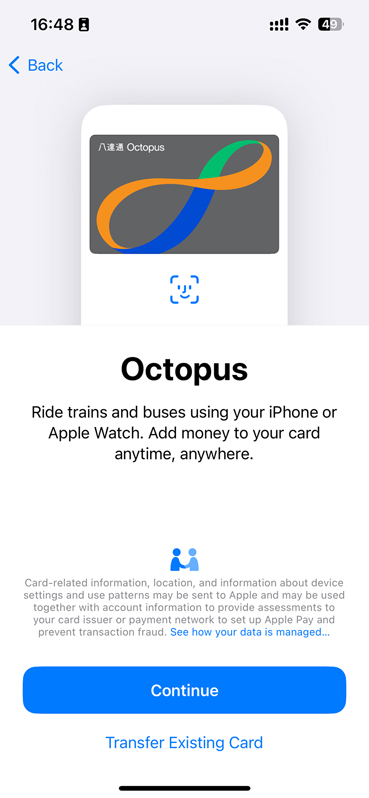
Tap “Transfer Existing Card”.
13
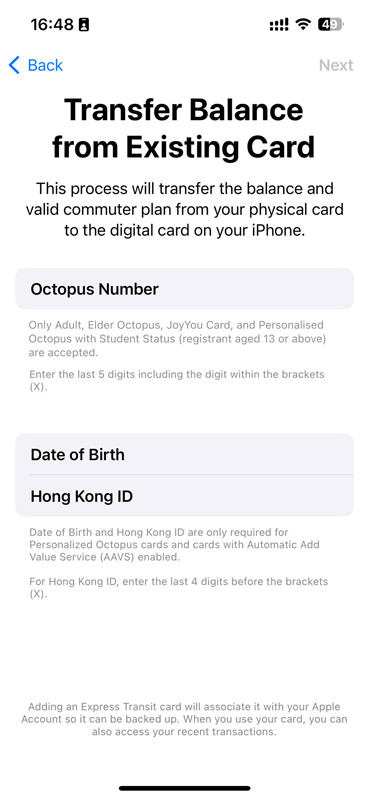
Enter the last 5 digits of the Physical JoyYou Card number including the digit within the brackets, date of birth, and the last 4 digits before the brackets of Hong Kong Smart Identity Card number.
14
Tap “Agree” to accept the Terms and Conditions.
15
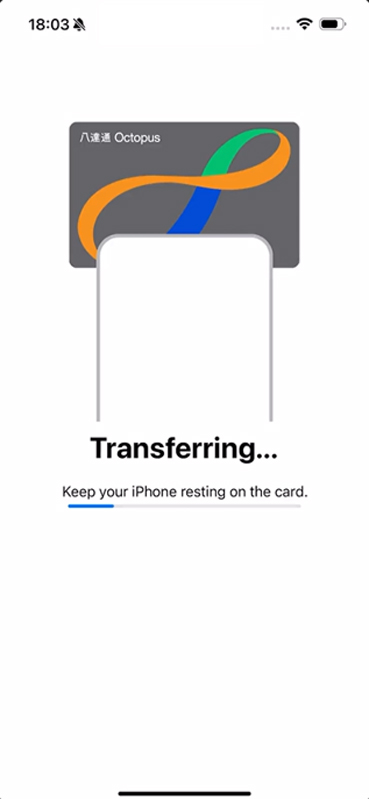
Hold the Physical JoyYou Card to the top back of the iPhone. This transfer process will take some time.
16
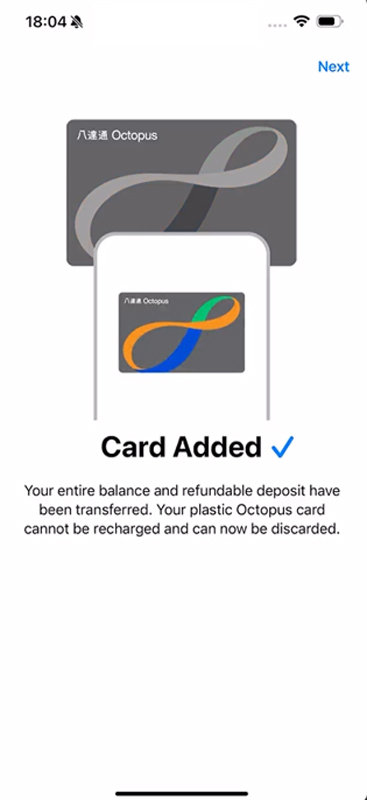
After the transfer is complete, tap “Next”. The Mobile JoyYou Card will appear in the Octopus App and is ready for use.
Steps for Android Users:
1
Open the Octopus App. Under “Quick Actions” on the main page, tap “All Actions”.
2
Tap “JoyYou Card” under “Help Centre”.
3
Tap “Transfer Physical JoyYou Card to Mobile JoyYou Card”.
4
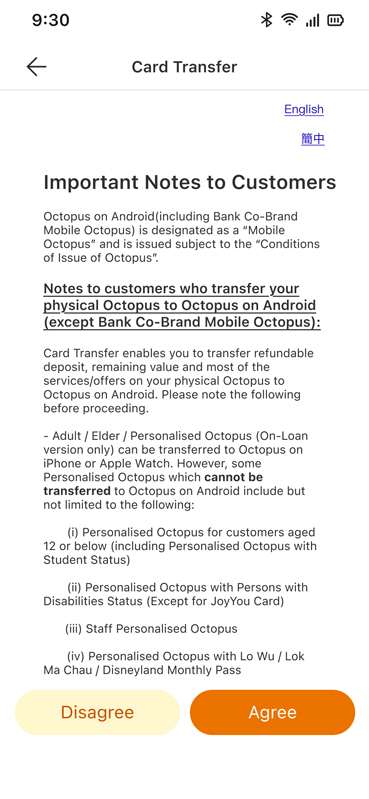
Read the Terms and Conditions and tap “Agree”.
5
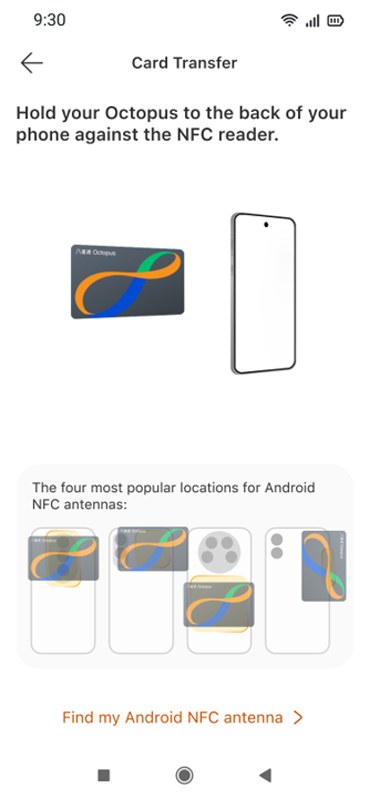
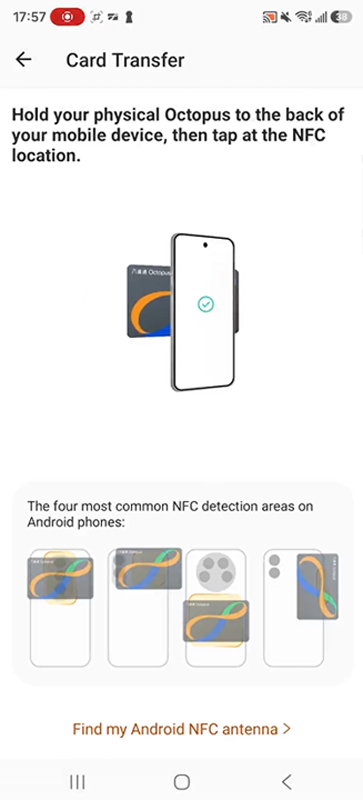
Hold the Physical JoyYou Card against the NFC reading area on the back of the phone.
6
Read the information and tap “Next”.
7
Tap “Continue with “iAM Smart”, then “Confirm” to open “iAM Smart” mobile app for identity verification.
(Please note: If you do not have an “iAM Smart” mobile app, please download the “iAM Smart” mobile app and log in first.)
8
In “iAM Smart” account, tap “Agree” to provide personal data to Octopus Cards Limited.
9
The page will be redirected to the Octopus App to complete the remaining steps. After identity verification, tap “Confirm Transfer”.
10
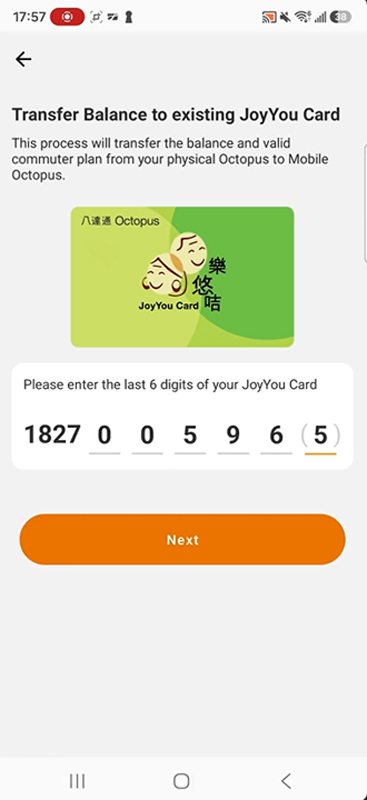
Enter the last 6 digits of the JoyYou Card number and tap “Next”.
11
Place the Physical JoyYou Card against the back of the phone and hold it over the NFC detection area until the transfer is complete.
12
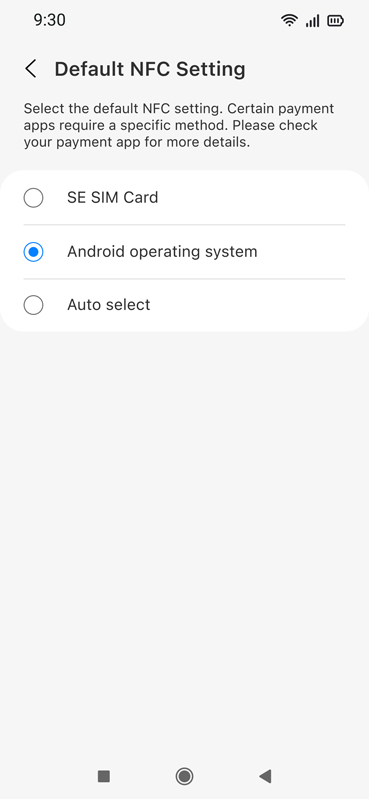
Set the default payment app to “Google Pay” / “Google Wallet”, “Android operating system” for Samsung devices, or “Octopus” for Huawei devices.
13
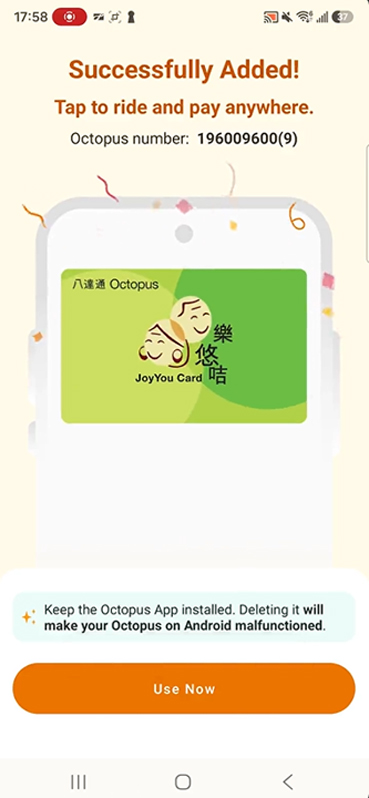
After the Mobile JoyYou Card has been added successfully, tap “Use Now”.
14
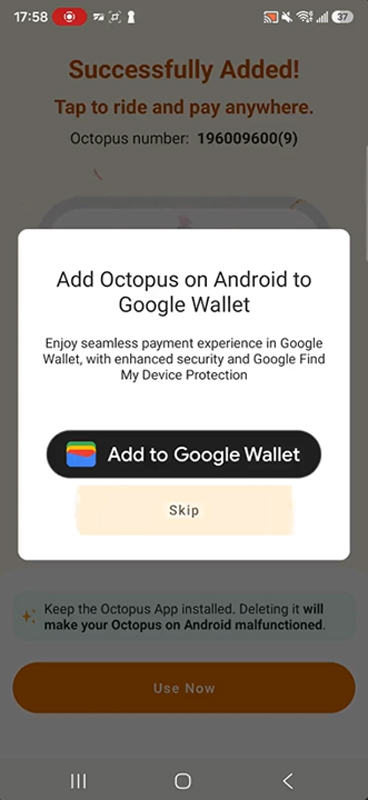
You may choose to add the Mobile JoyYou Card to Google Wallet. Tap “Add to Google Wallet”.
15
The Mobile JoyYou Card will appear in the Octopus App and is ready for use.
After Completion, Check That:
- Mobile JoyYou Card appears in the Octopus App;
- The balance is correct; and
- The correct cardholder name and photo appear under “Card Details”.
During Ticket Inspection
Octopus App is the designated ticket inspection interface for Mobile JoyYou Card.
On the Octopus App main page, tap “Card Details” to display all your Mobile JoyYou Card information, including the photo, name and card number, together with a real-time timestamp for verification.
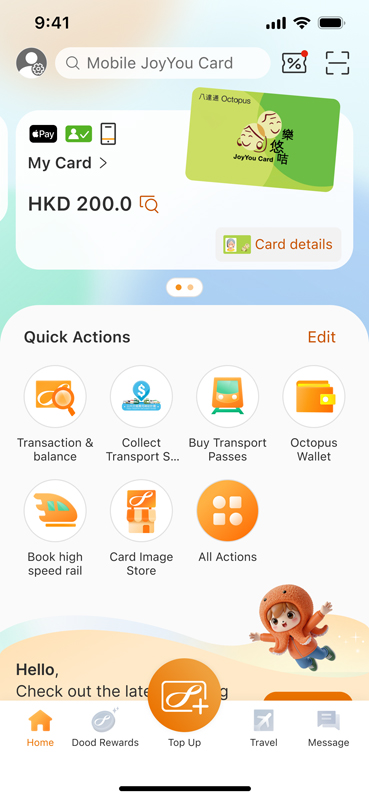
On the Octopus App main page, tap “Card Details”.
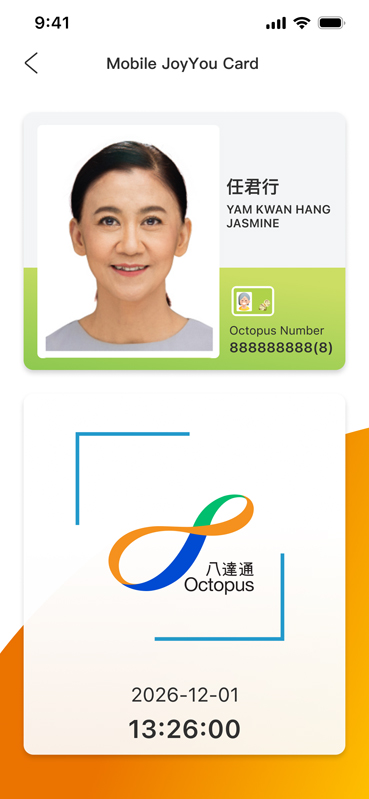
Display all Mobile JoyYou Card information, including the photo, name and card number, together with a real-time timestamp for verification.
Important
Octopus App is the designated ticket inspection interface for Mobile JoyYou Card. Please ensure that, under all circumstances, the Octopus App is installed and updated to the latest version on your mobile phone, and that your phone has sufficient battery power to cooperate with the ticket inspections.
When requested by public transport operators and authorised personnel to verify your identity, please tap "Card Details" on the Octopus App main page to show your JoyYou Card details (including photo, name and card number) and a real-time timestamp for inspection. Otherwise, the public transport operators and authorised personnel may require you to pay the full fare and reserve the right to redress.
Unable to Read the Physical JoyYou Card?
- Remove a phone case that may interfere with NFC;
- Place the Physical JoyYou Card flat against the back of the phone;
- Move the Physical JoyYou Card slowly around the upper rear area of the phone to locate the NFC reading position; and
- Keep the card still once the position is found.
If the card still cannot be read after several attempts, stop and contact Octopus Customer Service.