Manage your Citi Octopus Card on iPhone or Apple Watch
Where can I find the Octopus number?
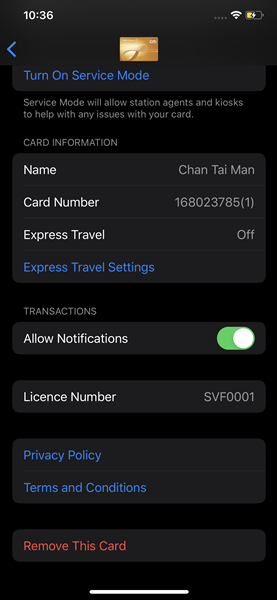
The Octopus number is displayed on the Octopus image in the Citi Octopus Card on iPhone or Apple Watch enquiry screen in the Octopus App, or can be found by opening Apple Wallet > select Octopus > click “…” > Find the Octopus number at “Card Information”.
Please make a note of the number, in case you are required to provide it to our staff when making enquiries.
How do I register my Citi Octopus Card on iPhone or Apple Watch in Octopus App? Why must I do so?
Your Octopus will be automatically registered in Octopus App once you log in to the app and select Citi Octopus Card on iPhone or Apple Watch, using the mobile device which holds the Octopus.
After registration, you can conduct all online services in Octopus App for this Citi Octopus Card on iPhone or Apple Watch, such as adding value to your Octopus, checking the transaction history, making online payments, transferring funds from Octopus Wallet or collecting bonuses.
Why can't I have my Citi Octopus Card on both iPhone and Apple Watch at the same time? Or on 2 iPhones / 2 Apple Watches?
A single Citi Octopus Card on iPhone or Apple Watch cannot be stored in Apple Wallet across multiple devices.
Same as Octopus on iPhone or Apple Watch, if you would like to use your Citi Octopus Card on iPhone or Apple Watch on other iPhone or Apple Watch, you can transfer it together with the remaining value and other Octopus Services such as AAVS. The Octopus number will remain unchanged. Please click here for details on transferring Citi Octopus Card on iPhone or Apple Watch to another iPhone or Apple Watch.
How do I check the remaining value and transaction history of my Citi Octopus Card on iPhone or Apple Watch using the Octopus App?
Step 1
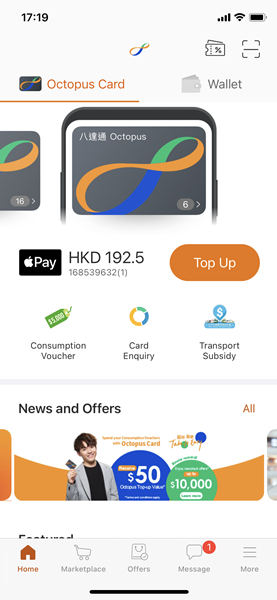
Open Octopus App, select “Citi Octopus Card” card face on Home page.
Step 2
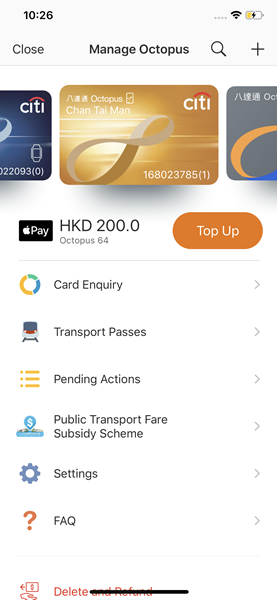
Click "Card Enquiry"
Step 3
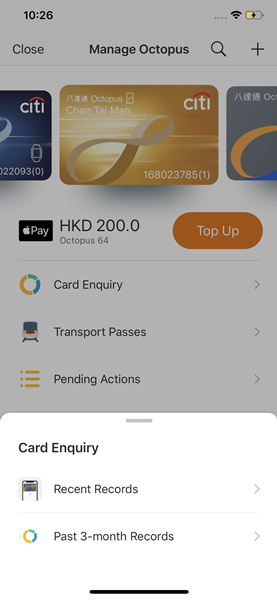
Select “Recent Records” or “Past 3-month Records”
Step 4
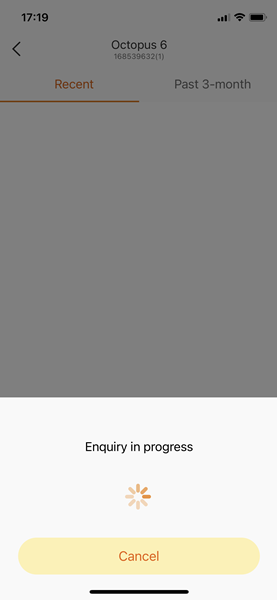
Enquiry in progress
Step 5
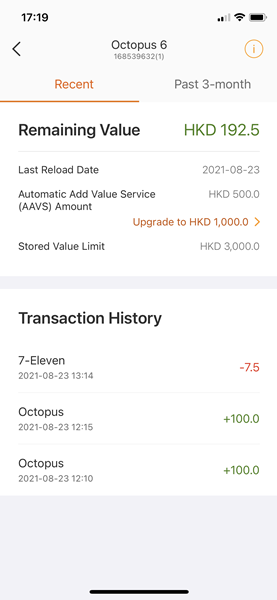
Remaining value and transaction history are displayed, you can view more details by clicking the field at the top.
How do I check the remaining value and transaction history of my Citi Octopus Card on iPhone or Apple Watch with Apple Wallet?
Step 1
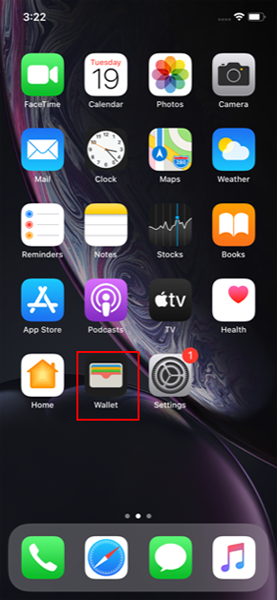
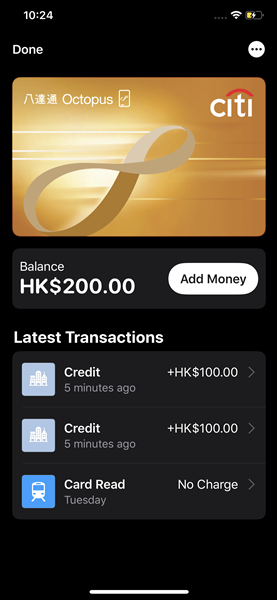
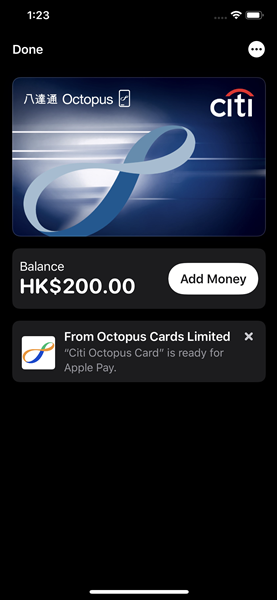
Open Wallet and Select Citi Octopus Card on iPhone or Apple Watch.
Step 2
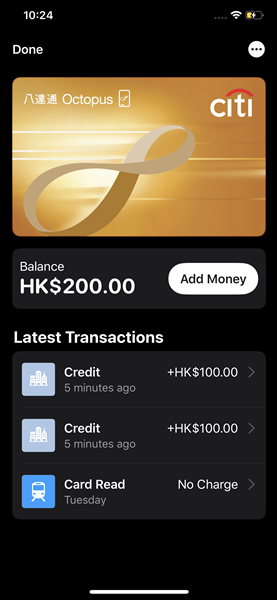
Remaining value and transaction history are displayed.
How do I backup and remove my Citi Octopus Card on iPhone or Apple Watch?
Step 1
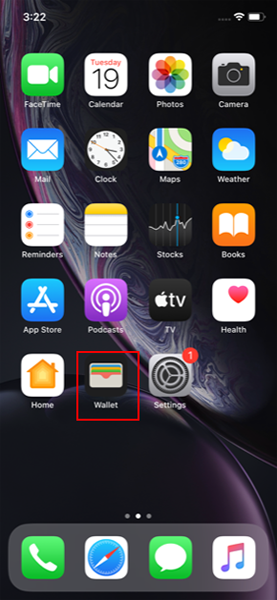
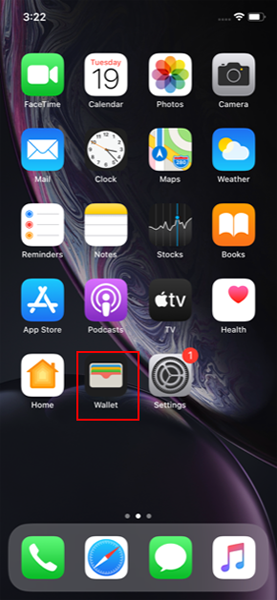
Open Wallet.
Step 2
Select Citi Octopus Card on iPhone or Apple Watch and tap "…"
Step 3
Click "Remove This Card".
Step 4
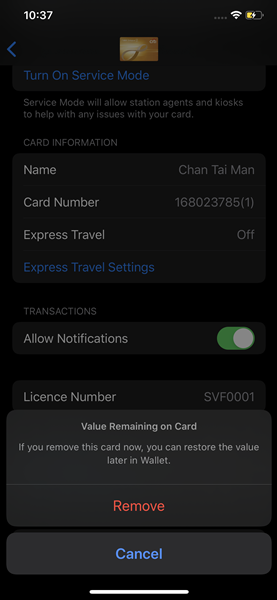
Click "Remove", this Octopus will be removed and saved in system.
How do I transfer my Citi Octopus Card on iPhone or Apple Watch from my iPhone to a new iPhone?
Step 1
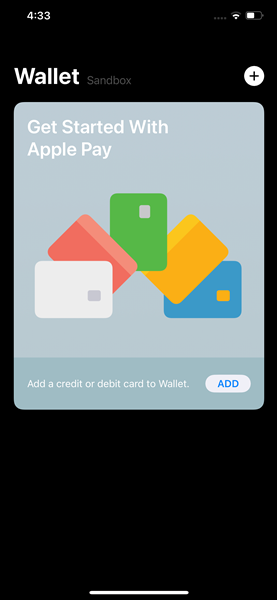
Open Wallet
Step 2
After removing your Citi Octopus Card on iPhone or Apple Watch from your previous iPhone and storing in system, you can restore it to your new iPhone. First, check that you have the latest version of iOS by going to Settings > General > Software Update. You also must be signed into the same Apple Account used in your previous iPhone with your Apple Account. Then Open Wallet, click "+".
Step 3
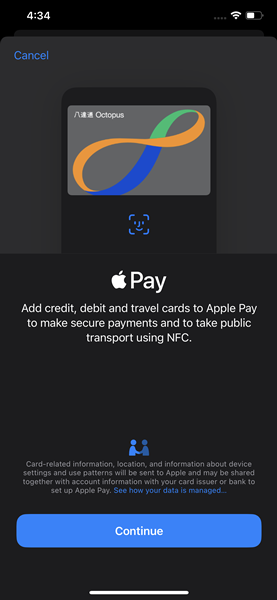
Click "Continue".
Step 4
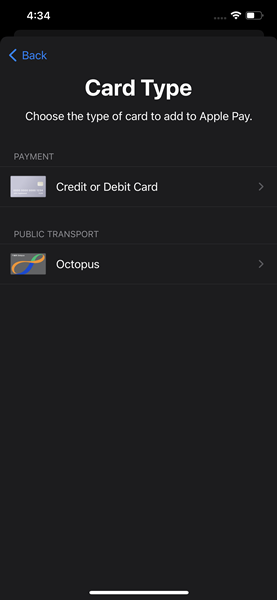
Click "Octopus".
Step 5
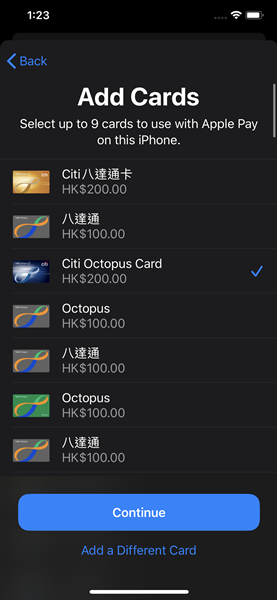
Select “Citi Octopus Card”.
Step 6
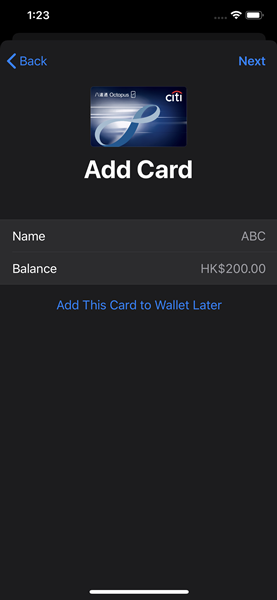
Click "Next".
Step 7
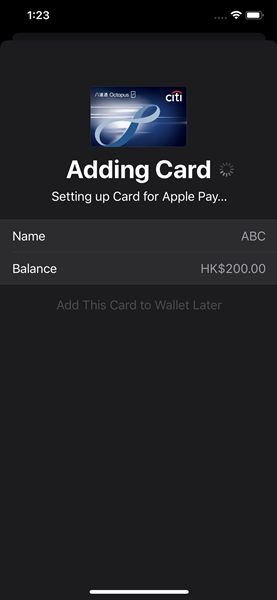
Adding Octopus in progress.
Step 8
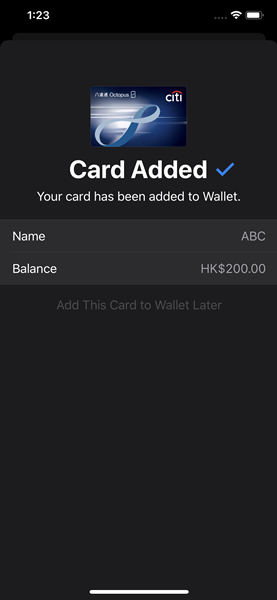
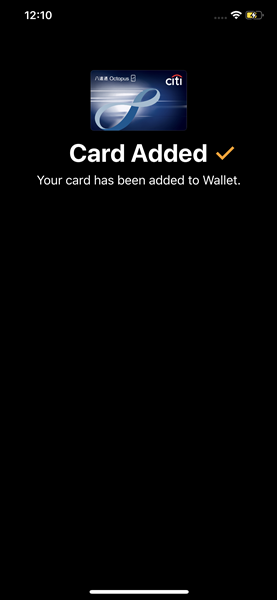
Citi Octopus Card on iPhone or Apple Watch is added successfully.
Step 9
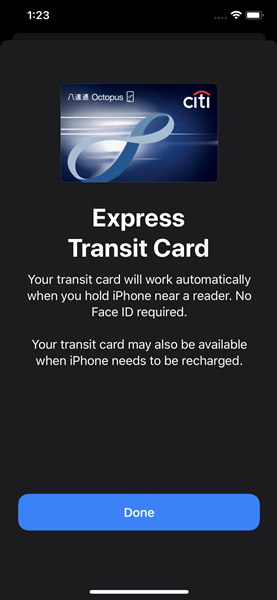
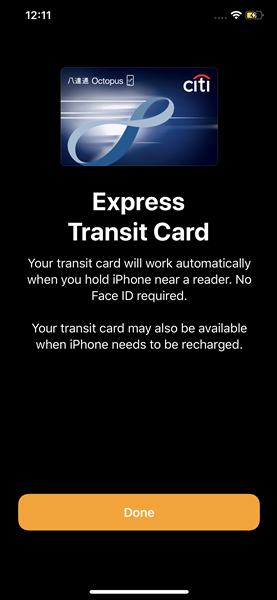
This Octopus is set as Express Transit Card automatically. Click "Done".
Step 10
Octopus is now ready to use.
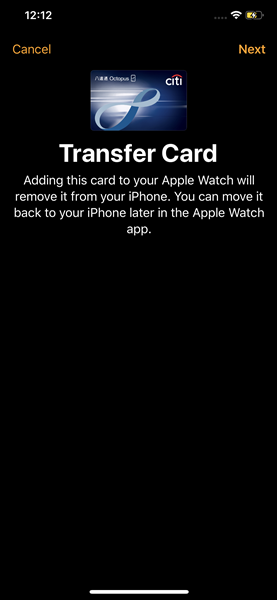
How do I transfer my Citi Octopus Card on iPhone or Apple Watch from my iPhone to my Apple Watch?
Step 1
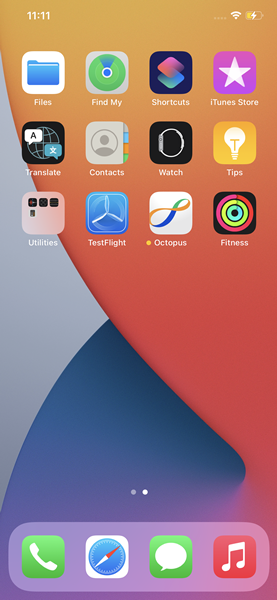
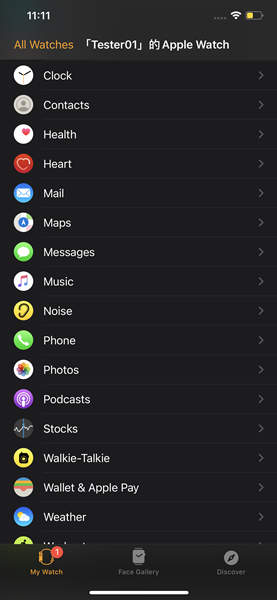
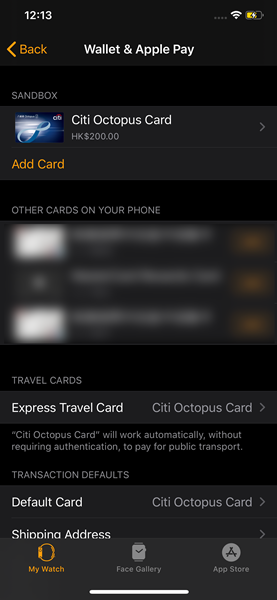
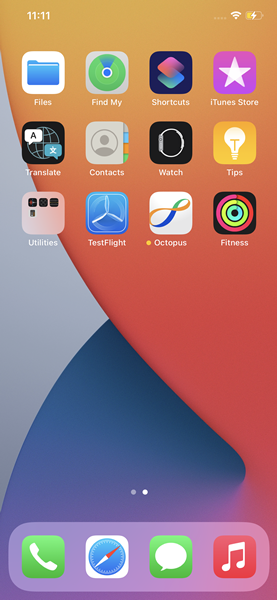
Open Watch app.
Step 2
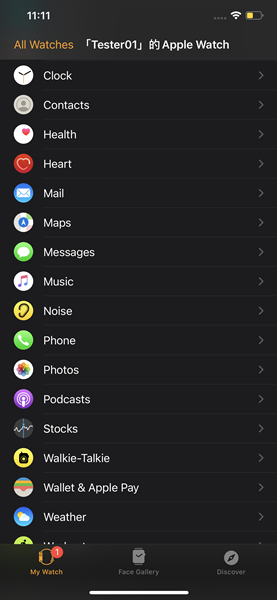
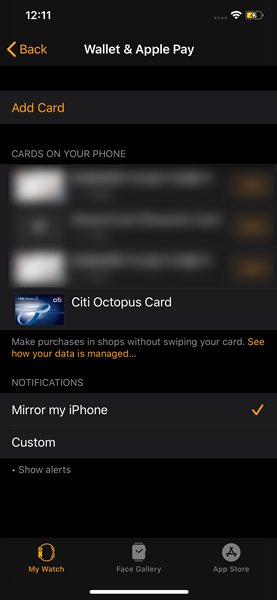
Click "Wallet & Apple Pay".
Step 3
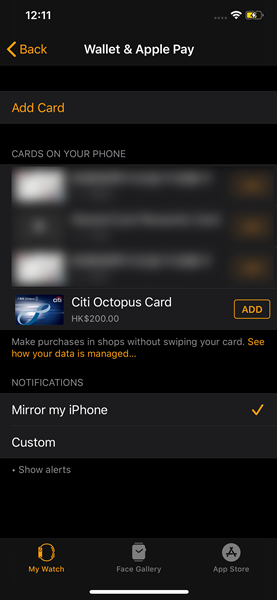
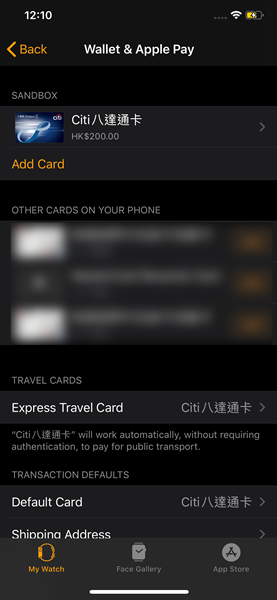
Click "Add" next to Citi Octopus Card under "OTHER CARDS ON YOUR PHONE".
Step 4
Click "Next".
Step 5
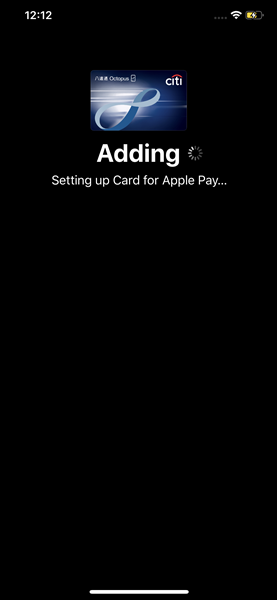
Adding Octopus in progress.
Step 6
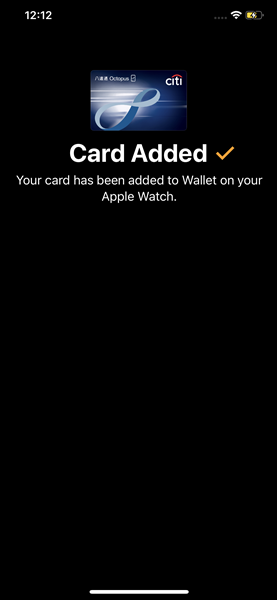
Octopus is added successfully.
Step 7
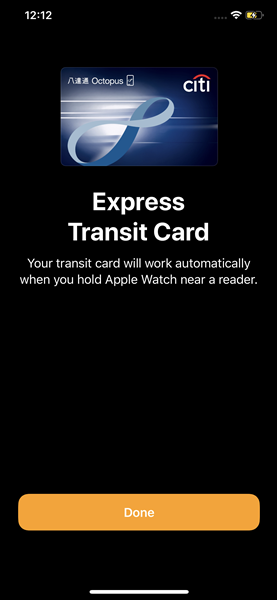
This Octopus is set as Express Transit Card automatically. Click "Done".
Step 8
You can now use the Octopus on Apple Watch.
How do I transfer my Citi Octopus Card on iPhone or Apple Watch from my Apple Watch to my iPhone?
Step 1
Open Watch app.
Step 2
Click "Wallet & Apple Pay".
Step 3
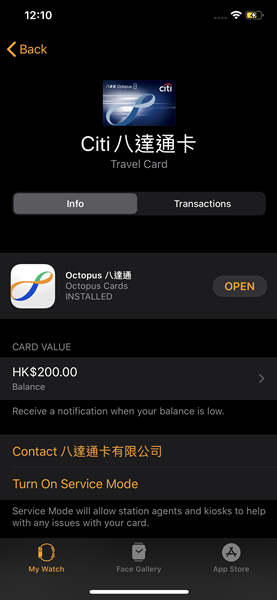
Click Citi Octopus Card under "PAYMENT CARDS ON YOUR WATCH".
Step 4
Click "Info".
Step 5
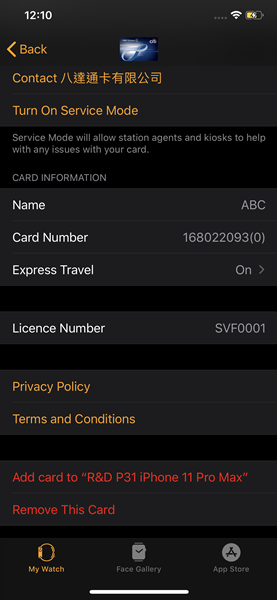
Click to add card to your iPhone.
Step 6
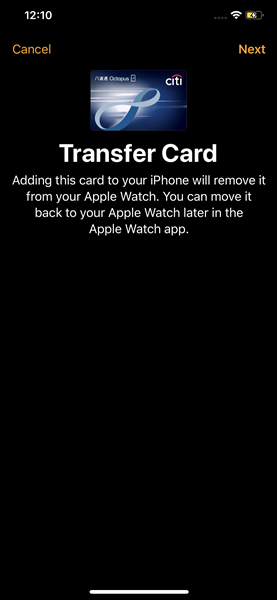
Click "Next".
Step 7
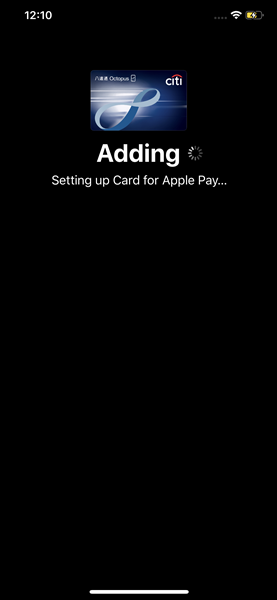
Adding Octopus in progress.
Step 8
Octopus is added successfully.
Step 9
This Octopus is set as Express Transit Card automatically. Click "Done".
Step 10
You can now use this Octopus on iPhone.
Will I lose my Citi Octopus Card on iPhone or Apple Watch if I sign out of Apple Account or reset my device?
No. As long as you are connected to the Internet before signing out from your Apple Account or resetting your device, your existing Octopus will be removed from your device and backed up. You may re-add your Citi Octopus Card on iPhone or Apple Watch to your device by signing-in with the same Apple Account and using the Wallet app or Watch app.